
How to Automate Instagram Content Publishing in n8n with Google Sheets and Gemini
Use n8n, Google Sheets, Gemini, and the Instagram Graph API to turn content ideas into published posts.
This guide shows how to build an n8n workflow that reads post ideas from Google Sheets, uses Gemini to generate content, creates an image, and publishes the result to Instagram. It is well suited to teams that manage a backlog of social ideas in a spreadsheet and want a repeatable publishing process.
Related Tools
Details
You can automate Instagram publishing in n8n by treating your content plan as structured input rather than ad hoc copywriting. In this workflow, Google Sheets stores the next post idea, Gemini turns that idea into a content concept and caption, an image model creates the visual asset, and the Instagram Graph API publishes the final post.
This setup is useful when your team already works from a backlog of ideas and wants execution help, not just scheduling. It is less useful if every Instagram post is heavily art directed or depends on manual asset selection. The workflow works best for repeatable formats such as educational single-image posts, product highlights, quote cards, or recurring campaign themes.
What you will build
You will build an n8n workflow that runs on a schedule, checks Google Sheets for the next unprocessed idea, generates a platform-specific content concept, creates image prompt options, writes a caption, generates an image, and publishes the post to Instagram. After publishing, the workflow updates the sheet so the same idea is not used again.
What you need before you start
- A Google Sheet with fields such as Topic, Audience, Voice, Platform, and Status.
- n8n credentials for Google Sheets and your AI provider. The source workflow uses Google Gemini for concept and caption generation.
- An image generation endpoint. The template uses Replicate Flux.
- Instagram Graph API access for the account that will publish the post.
- A content format that can be generated consistently, such as single-image educational posts.
Step-by-step setup process
- Create a worksheet where each row is a future post idea. Add a status column so the workflow can tell which rows are still pending.
- Add a schedule trigger in n8n and connect a Google Sheets node that fetches the next row with Status equal to pending or zero.
- Use a Set node to normalize the row into clean variables such as topic, audience, voice, and platform. This makes your prompts easier to maintain.
- Send those variables into Gemini to generate a content concept. Keep the output structured so downstream nodes can read it reliably.
- Use a second AI step to expand the concept into one or more image prompts, then a third step to write the final Instagram caption and hashtags.
- Send the first prompt to your image generation service and capture the resulting image URL.
- Prepare the caption and image URL for the Instagram Graph API, create the media container, wait for processing, and publish the post.
- Update the Google Sheet row to mark it complete. Without this step, the workflow will keep posting the same idea on later runs.
How to validate the workflow
Start with one row and run the workflow manually. Inspect the generated concept, prompt, caption, and image before you try to publish. Then test the publishing stage with a noncritical account if possible. Finally, confirm the status field in the sheet is updated after a successful post. That sheet update is the control point that keeps the workflow from repeating content.
Common mistakes and fixes
- Weak captions: If Gemini receives vague inputs, the caption will be generic. Tighten the sheet fields rather than trying to fix everything in the prompt.
- Broken image generation: Image models often fail because the prompt format or endpoint expectations are off. Test the image step separately before chaining it into publishing.
- Instagram container errors: The Graph API requires the media container to finish processing before publication. Keep the wait step in place.
- Repeated posts: If the status update fails, the next scheduled run may reuse the same row. Always verify the final sheet writeback.
- The wrong platform assumptions: This workflow is optimized for Instagram-style single-image output. LinkedIn or carousel logic may need different prompts and publishing steps.
When a template makes sense
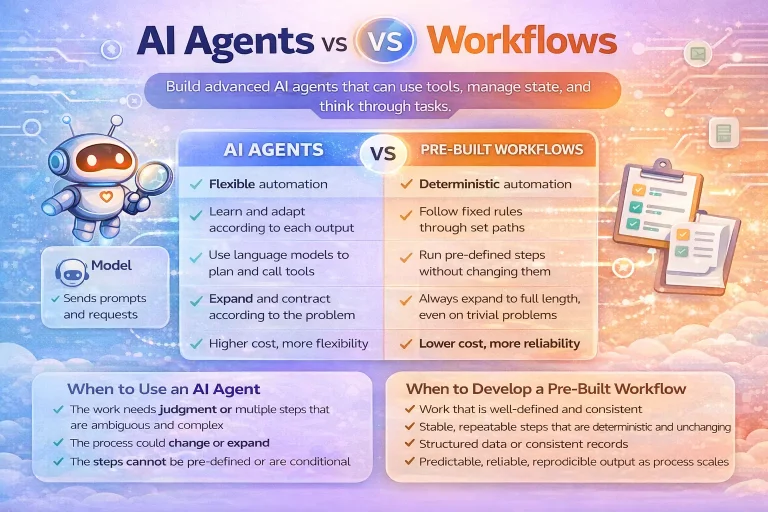
A prebuilt template is useful because this workflow has several stages that need to pass structured outputs to each other. Prompt generation, image creation, Instagram publishing, and sheet updates all depend on the previous step being in the expected format. A template gives you that end-to-end path. You still need to bring your own sheet structure, prompts, image provider credentials, and Instagram account setup.
If your team wants manual design review or alternative asset selection before publishing, keep the template but insert an approval stage before the Graph API steps.
Best practices
- Keep your sheet schema stable. Changing column names is one of the fastest ways to break the workflow.
- Use structured AI outputs, especially when one model step feeds the next.
- Begin with one fixed content format before expanding to carousels, reels, or multi-image posts.
- Store the published post ID or timestamp if you need an audit trail later.
FAQ
Can I replace Google Sheets with Airtable or Notion?
Yes. The overall pattern stays the same if the replacement can provide a structured content queue and a completion marker.
Do I have to use Gemini?
No. Gemini is the model used in the source workflow, but other LLMs can fill the same role if they return structured output consistently.
Can this publish to platforms other than Instagram?
Not without changes. The content generation steps may transfer well, but the final publishing path is specific to the Instagram Graph API.
Final notes
This workflow works best when your spreadsheet is already part of the content operation. It turns that sheet into a controlled publishing queue rather than a passive idea list. If the prompts are strong and the status tracking is reliable, n8n can move a post from idea to publication with very little manual handling.
Related Templates

Instagram Content Publishing Google Sheets Gemini Workflow Template
Turn content ideas stored in Google Sheets into AI-generated Instagram posts with captions, images, and status updates.
View Template