
How to Build an n8n Mailchimp Subscriber Sync from Google Sheets
Use n8n to move subscriber rows from Google Sheets into Mailchimp without manual imports.
This guide shows how to build a lightweight n8n workflow that reads lead data from Google Sheets and adds subscribers to Mailchimp. It is a practical setup for small teams that collect leads in spreadsheets first and want a repeatable way to sync them into an email list.
Related Tools
Details
If your team stores inbound leads in Google Sheets before doing anything else, an n8n Mailchimp sync is one of the simplest ways to remove repetitive list imports. The workflow reads new rows from a sheet, maps the subscriber fields, and sends them into a Mailchimp audience so email marketing can start from cleaner data.
This is a basic workflow on purpose. It is not full lead scoring, segmentation, or lifecycle automation. Its value is reliability. If the sheet remains the place where leads first appear, this sync reduces the chance that subscribers stay stranded there.
What you will build
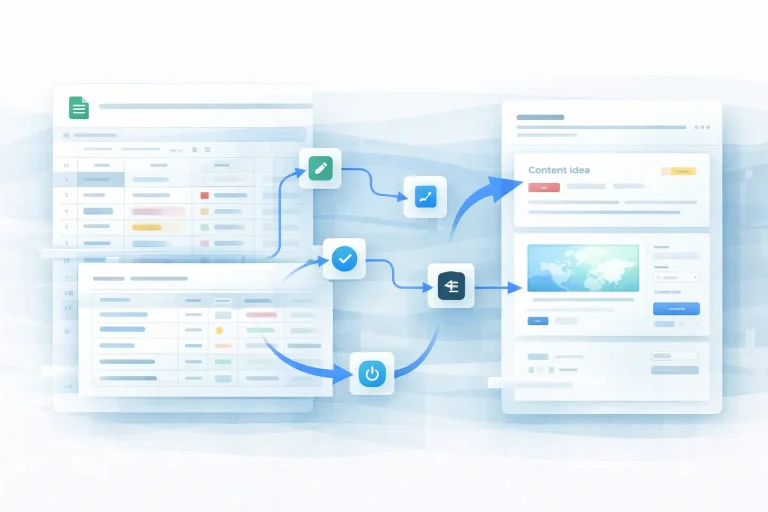
You will build a workflow that reads one or more rows from Google Sheets and creates Mailchimp members from those rows. The source template is simple and can be triggered manually or on an interval, which makes it suitable for small teams that want to process batches on a schedule rather than in real time.
When to use this workflow
Use this workflow when your lead collection process is spreadsheet-first. That often happens in early-stage teams, event marketing, lead list consolidation, or campaigns where several contributors add rows manually. If your acquisition source already integrates directly with Mailchimp, this workflow may be unnecessary.
You should also be careful about compliance and consent. The sheet should not act as a dumping ground for contacts who never agreed to email marketing.
What you need before you start
- A Google Sheet with stable columns such as email, first name, last name, source, and status.
- A Mailchimp audience ready to receive subscribers.
- n8n credentials for Google Sheets and Mailchimp.
- A rule for identifying which rows are ready to sync, such as a status column or a blank synced_at value.
Step-by-step setup process
- Connect Google Sheets and choose the spreadsheet and worksheet that contain your leads.
- Decide how the workflow finds rows to sync. A status field such as Ready, or a blank marker such as synced_at, is usually better than reading the entire sheet every time.
- Add a Mailchimp node to create or update a subscriber. Map the email address first, then the merge fields you actually use.
- If you want the workflow to run automatically, add a schedule or interval trigger. Start with a conservative cadence, such as every hour, until you trust the setup.
- After a successful Mailchimp action, write a marker back to the row so the same record is not imported again.
How to test or validate the workflow
Create a test row with your own email address, run the workflow once, and confirm the contact appears in Mailchimp with the right fields. Then run the workflow again to confirm it does not create unnecessary duplicates. The most important validation is not whether the API call works. It is whether your row-selection rule prevents repeated imports.
Common problems and fixes
- Duplicate subscribers: Add a synced marker in the sheet or use Mailchimp upsert behavior if available in your setup.
- Bad field mapping: Keep the sheet headers consistent. Small changes in column names often break simple spreadsheet automations.
- Invalid email addresses: Consider adding a filter before Mailchimp so obviously broken rows do not get submitted.
- Wrong audience: Double-check the Mailchimp audience ID before you activate the workflow. Test environments and live lists are easy to confuse.
When a template helps
This is exactly the kind of workflow where a template can save time. The logic is standard, the node sequence is short, and most of the work is in credentials and field mapping. Importing a template lets you skip the blank-canvas stage and focus on the details that matter for your sheet and audience.
You will still need to customize the row selection rule, the mapped merge fields, and the post-sync marker. Those small details are what determine whether the workflow stays reliable after the first run.
Best practices
- Use a dedicated worksheet for sync-ready records instead of a catch-all tab.
- Keep a status column so nontechnical teammates can see which rows were processed.
- Write back the Mailchimp member ID or sync timestamp if you need traceability later.
- Do not treat Google Sheets as a long-term customer database if the list is growing quickly.
FAQ
Can I run this in real time instead of on a schedule?
Yes, but spreadsheet-driven processes are often easier to manage in short batches unless another tool is creating rows instantly.
Should I add segmentation in the same workflow?
Only if the segmentation logic is simple. Otherwise, keep the first workflow focused on clean list sync and add later steps separately.
Is Google Sheets a good long-term source for subscriber data?
It works for lightweight processes, but most teams eventually move primary subscriber capture closer to the source form or CRM.
Final notes
An n8n Mailchimp sync from Google Sheets is not complex, but it solves a real operational problem for small marketing teams. If the sheet is where leads live today, a dependable sync is more useful than a more ambitious workflow that nobody maintains.
Related Templates

Mailchimp Subscriber Sync Google Sheets Workflow Template
Read lead rows from Google Sheets and add them to a Mailchimp audience on a recurring schedule.
View Template