
Typeform Contact Capture HubSpot Workflow Template
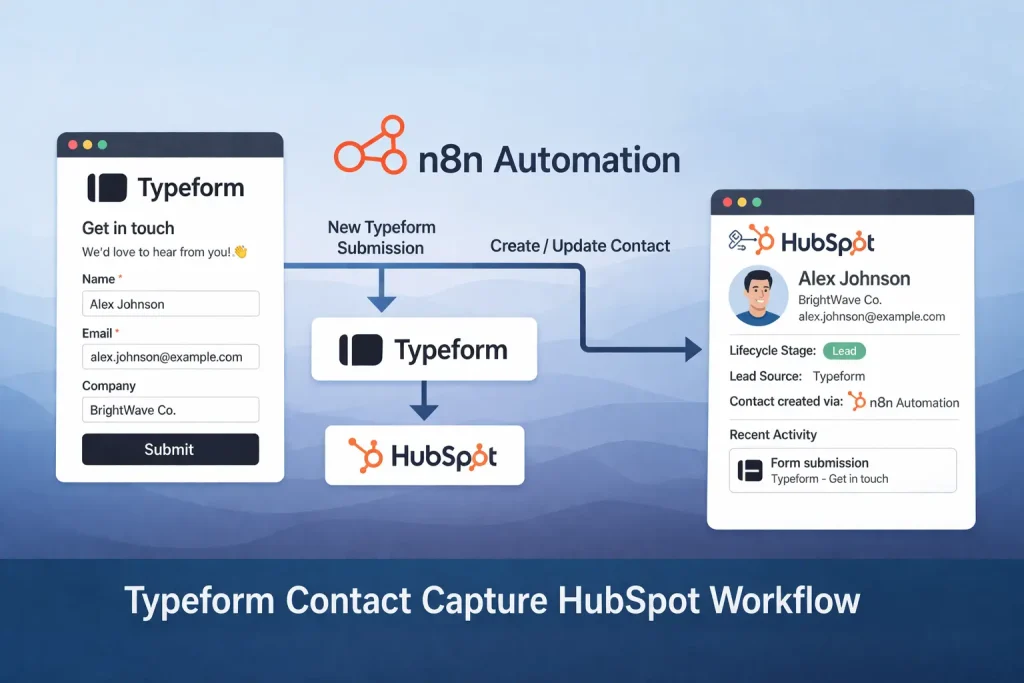
Capture Typeform submissions in HubSpot, mark interested leads as opportunities, and send a follow-up email from one n8n workflow.
This template turns a Typeform response into a CRM record and a basic lead-routing step. It maps the submitted fields into HubSpot, checks whether the contact expressed interest, and only sends follow-up material when the lead meets that condition.
It is a practical fit when you want a lightweight intake workflow between a marketing form and HubSpot without building a full scoring system first.
Tools Used


What This Workflow Does
This n8n workflow handles Typeform lead capture and simple HubSpot follow-up.
- Receives a new Typeform submission in real time
- Maps submitted name, company, department, and email fields into a structured record
- Creates a new HubSpot contact from the form response
- Checks whether the person indicated interest in business services
- Updates interested contacts to the opportunity lifecycle stage in HubSpot
- Sends an email with next-step information only to interested contacts
How It Works
- A Typeform trigger starts the workflow when a new response arrives.
- A Set node remaps the raw answers into clean contact fields such as first name, last name, company, department, and email.
- HubSpot creates a new contact using the mapped values.
- An If node checks the submission’s interest field.
- If the lead is interested, HubSpot updates the lifecycle stage to opportunity.
- Gmail sends a follow-up email with scheduling or information links.
- If the lead is not interested, the workflow stops without sending outreach.
Use Cases
- Contact form intake into HubSpot
- Typeform lead capture
- Basic lead qualification from form answers
- Automatic follow-up for high-intent submissions
- Marketing handoff into CRM
Benefits
- Reduces manual copying from Typeform into HubSpot
- Keeps form fields consistent before writing to the CRM
- Separates interested leads from lower-intent submissions
- Starts follow-up without waiting for a manual email
- Works as a simple base before adding lead scoring
Customization Ideas
- Add duplicate checking before creating a HubSpot contact
- Create separate follow-up emails by department or company type
- Add Slack alerts for opportunity-stage leads
- Write non-interested leads into a nurture list instead of stopping
- Attach meeting links, PDFs, or campaign attribution fields
Details
This workflow captures a Typeform submission, converts the answer set into a cleaner contact structure, writes the record into HubSpot, and sends a follow-up email only when the lead shows interest. In practice, it works as a simple lead intake and routing layer between a marketing form and your CRM.
What goes into the workflow
The input is a live Typeform response. The JSON export shows the workflow pulling out first name, last name, company name, department, email address, and a boolean-style interest answer from the submitted form fields. Those raw answers are not sent directly into HubSpot. A Set step first remaps them into cleaner internal field names so later nodes can work with predictable values.
What comes out
The main output is a new HubSpot contact. If the interest condition is true, the same contact is moved to the opportunity lifecycle stage and receives an email with next-step material. If the lead does not match the interest condition, the workflow exits without additional outreach. That makes the output more selective than a simple form-to-CRM sync.
Where the automation logic matters
The key logic is the conditional branch between the initial HubSpot contact creation and the follow-up sequence. This is useful when every form response should be stored, but not every person should receive the same sales-facing email. The branch keeps the CRM complete while limiting outbound follow-up to leads that match the question logic from the form.
Required tools and setup
You need a Typeform account, HubSpot credentials, and Gmail access in n8n. You also need to review the exact Typeform field mappings because the exported workflow references the original question labels. If those labels change in your form, the Set node needs to be updated. The Gmail node also contains placeholder-style content that should be replaced with your actual meeting link, presentation link, or onboarding message.
Who should use this template
This template is a good fit for teams that already collect inbound leads through Typeform and want those responses inside HubSpot immediately. It is especially useful when you do not need complex scoring yet and only need one or two qualification conditions before sending a reply.
What usually needs customization
Most users will need to change the Typeform field mapping, the HubSpot field mapping, and the email copy. You may also want to add duplicate protection, UTM field capture, lead owner assignment, or list segmentation in HubSpot. If your intake logic depends on more than one answer, replace the single If branch with a richer scoring or routing step.
Common limitations
This workflow does not include deduplication, enrichment, or fallback handling for invalid email addresses. It also assumes your form structure stays stable. If the form changes often, a more defensive mapping layer is worth adding. If you need lead scoring, queueing, or SDR assignment, treat this template as the first stage of a larger CRM workflow rather than the final version.
FAQ
What does this workflow automate?
It captures Typeform responses, creates HubSpot contacts, checks a simple interest condition, and emails the leads that should move forward.
Do I need HubSpot and Typeform credentials before importing it?
Yes. The workflow relies on live Typeform submissions and HubSpot contact actions, so both accounts must be connected before testing.
Does it score leads automatically?
No. This version uses one interest-based condition rather than a full scoring model. It is best used as a simple qualification layer.
Can I use another form tool instead of Typeform?
Yes. The trigger can be replaced with another form source as long as you remap the incoming fields before the HubSpot step.
Summary
Platform: n8n
Use Case: Lead generation
Tools: Typeform, HubSpot, Gmail
Output: New HubSpot contacts with conditional follow-up emails
Related Guides
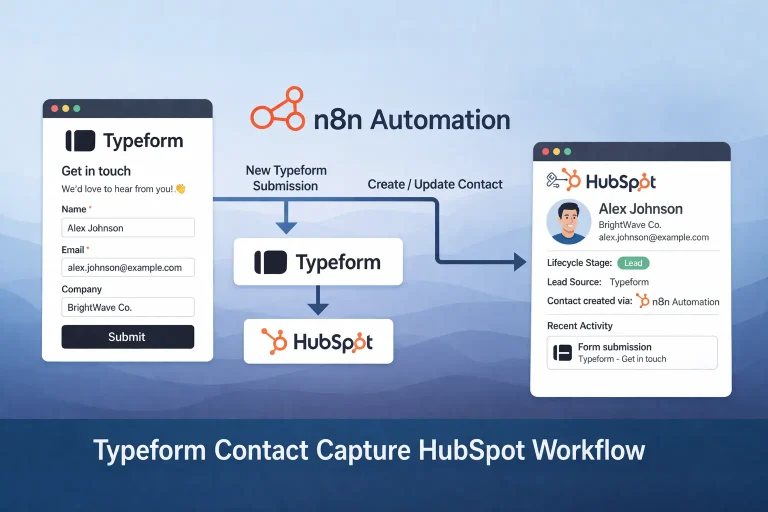
How to Build an n8n Typeform to HubSpot Lead Capture Workflow
This guide shows how to build an n8n workflow that turns Typeform submissions into HubSpot contacts and optionally moves high-intent leads into an outreach path. It is a...
Read GuideRelated Templates
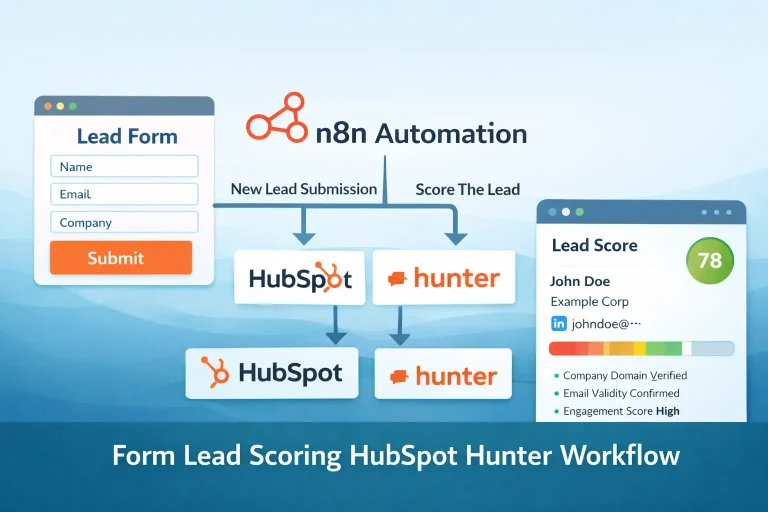
Form Lead Scoring HubSpot Hunter Workflow Template
Validate a form submission, score the lead, send outreach to qualified contacts, and log the engagement in HubSpot.
View Template
Lead Qualification Slack Workflow Template
This workflow automates lead qualification and keeps the output in sync across the tools used in the process.
View Template
LinkedIn Profile Collection Google Sheets Workflow Template
This workflow automates linkedin profile collection and keeps the output in sync across the tools used in the process.
View Template